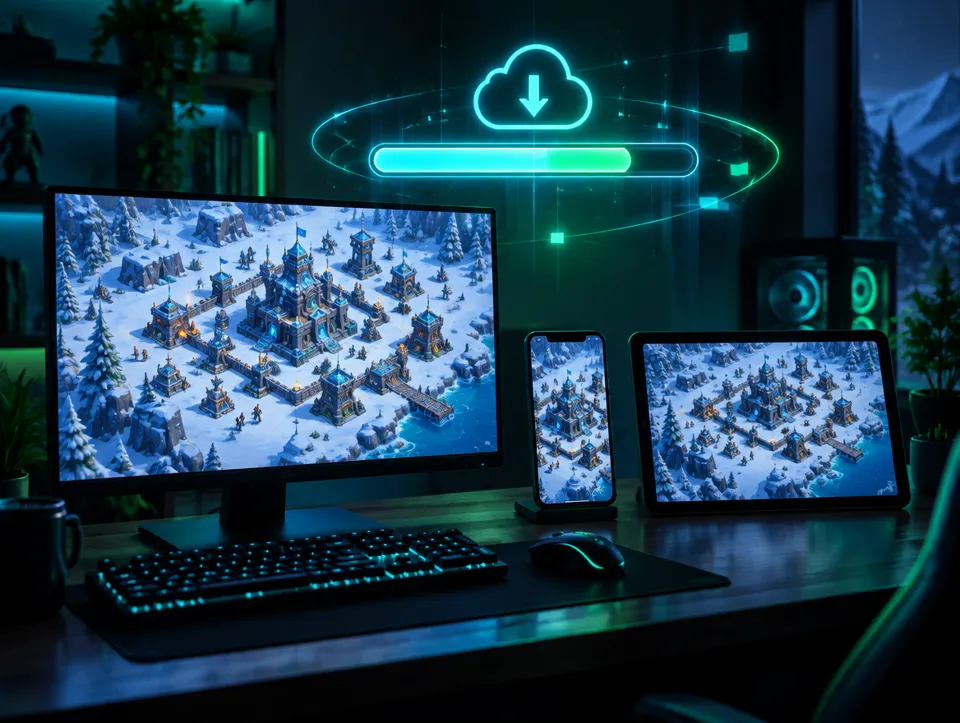
To download Last War, first select the device you will play on. The store page for Android, the App Store listing for iPhone and iPad, and the game's official PC redirect for Windows are the correct starting points. When looking for a download link, avoiding an APK mirror unrelated to the game or a fake login screen is the most important step in installation.
Where to Download Last War From?
There are three main official paths for Last War: Survival: the Android app on Google Play, the game listing on the Apple App Store, and the PC client accessed via the game's official website. Open the one suitable for your device; do not rely on random "download" buttons seen in search results. It is wise to double-check the domain name and app publisher, especially in ad-supported results.
| Device | Starting Point | Pre-installation Check | Important Account Note |
|---|---|---|---|
| Android phone or tablet | Google Play app page | App name and publisher | Ensure your existing account is linked |
| iPhone or iPad | App Store game listing | Device compatibility and store info | Save the login method you use |
| Windows PC | Game's official site, PC download redirect | Official domain and source of installer file | Link mobile account to email first |
| Windows PC, Google Play Games | Google Play Games PC game page | Google's page and PC requirements | Google account sync is a separate path |
These options are different distribution channels for the same game. Do not treat the official Windows client, the Google Play Games PC page, and running the Android version via emulator as a single product. Installation steps and login flows may vary. For a more detailed comparison of PC options, see the Last War PC guide and the PC, mobile, and emulator comparison.
When sharing a link, use the direct store or game site address. Shortened links, third-party file hosts, and "modded version" pages obscure the source. If you need to reinstall the game later, finding it again through your store history or the official site provides a clearer path than saving a randomly downloaded file.
How to Download Last War on Android?
For Android, open the official Google Play listing mentioned above. After verifying the game name, icon, and publisher information on the page, use the store's install button. In research files, the developer is listed as FUNFLY PTE. LTD. (FirstFun). If you see an app with a similar name, do not rely solely on name matching; examine the page itself and the publisher.
- Open the Google Play link on your device.
- Verify that the app page belongs to Last War: Survival Game.
- Read the device compatibility and storage warnings shown by the store.
- Complete the installation via Google Play.
- When opening the game, proceed with the correct login method if you have an existing account.
In these research files, there is no single fixed download size verified for Android, nor a definitive minimum OS version applicable to all phones. Therefore, the real-time device compatibility notification in the store is more useful. When calculating storage needs, do not base it only on the size of the downloaded package; additional data and updates may require space after installation. Instead of giving exact numbers, follow the device's warning in the store.
If you encounter a "Not available in your country" issue, first check that the link opens the correct game page and review Google Play's own device compatibility message. Trying to bypass store warnings about country, account, or device by downloading an APK from another site does not solve the root cause. Details on APK security are below; after starting the game, you can move to the beginner's guide for basic concepts.
Download Status on iPhone, iPad, and Mac
For iPhone and iPad, use the App Store listing linked above. Research notes indicate iOS 10.0 or later for iPhone and a listed app size of 1.8 GB. Since store listings change over time, read the compatibility and space information displayed on your specific device during installation. The value shown by the app store is the practical reference for downloads and updates.
The App Store listing also specifies macOS 11.0 or later and Apple M1 or higher requirements for Mac. The key distinction here is that app support offered via the App Store on Mac does not mean it is the Mac version of the official PC client announced for Windows. Research files do not verify a separate native macOS PC client. If you use a Mac, rely on the compatibility info in the App Store listing; do not download the Windows installer file as if it were suitable for Mac.
| Platform | Requirement or Info Found in Research | How to Interpret? |
|---|---|---|
| iPhone | iOS 10.0 or later | Final decision is given by the App Store compatibility warning on your device |
| iPad | App Store listing exists | Check compatible model and version in the store |
| Apple Silicon Mac | macOS 11.0 or later, Apple M1 or higher | App Store app support; not a separate Windows PC client |
| iOS app size | 1.8 GB in research | Recheck current size and required free space in the store |
Reinstalling the app when switching phones and restoring game progress are two different operations. For the former, access to the store is sufficient; for the latter, you must log in with the same game account. Checking which login method you used and the account linking status while you still have the old device is easier than searching for the account later. We cover cross-device progress step-by-step in the section below.
How to Install the Windows PC Client?
On Windows, first open the official Last War website linked above and follow the "Play on PC" or download instructions. Research indicates that the official announcement points to the “Play on PC” option and that the official PC version is a standalone client. If you reached the download page via a search engine, double-check the domain name before running the file. Do not consider Windows files offered by forums or APK archives as the official client.
The installation process is simple: go to the official link, open the download link, run the installer on Windows, and complete the steps shown by the client. If you see an unexpected application or different publisher during installation, re-examine the source before proceeding. Since research files do not verify every screen name in the setup wizard, we do not provide memorized steps based on menu names.
Google Play Games for PC is another option. Google's Last War PC page provides information on accessing the game and syncing with a Google account. The requirements listed on this page are provided in the table below. Do not automatically apply these values to every distribution method; the current warnings specific to your download path take precedence.
| Component | Minimum Google Play Games PC requirement reported in research |
|---|---|
| Operating system | Windows 10, version v2004 |
| Memory | 8 GB RAM |
| Storage | 10 GB free space on SSD |
| Processor | Four physical cores |
| Graphics | Intel UHD Graphics 630 or equivalent |
| Other | Windows administrator account and enabled hardware virtualization |
This table is not a performance promise. Meeting the minimum hardware specifications does not guarantee identical loading speeds or gameplay smoothness on every device. Research did not find separate official minimums for Windows 11 or different RAM/storage tables for the official standalone client. Instead of inventing unknown values, rely on the current system check displayed during installation.
When using the requirements table, check each component individually. For example, sufficient total free space does not necessarily mean the space is on an SSD. The number of logical cores seen in the processor is also not the same metric as the physical core count listed in the table. If hardware virtualization is disabled, the Google Play Games PC installation may fail even if other components meet requirements. In such cases, instead of switching to a third-party download file, return to the official requirements screen for your chosen PC path. Distinguishing whether the issue stems from the download, installation, or account login prevents trying incorrect files.
Although the official PC client and Google Play Games for PC both serve the purpose of playing the game on a computer, providing a single description for login screens would be misleading. The official client announcement describes email login, while the Google Play Games for PC side specifies Google account synchronization. Therefore, note which path you are following before installation. Especially if you have existing mobile progress, the account step of your chosen path may be more decisive than system requirements. Launching the game alone does not prove that your old progress is connected to the correct account.
If you are opening the game on PC for the first time, check how to connect the account you use on mobile instead of immediately starting new progress. This way, if you intend to play the same game on two devices, you can start with the correct login method. For a broader explanation regarding installation, you can also visit the installation page.
How to Use the Same Progress via Account Linking
The official PC announcement in the research files states that mobile and PC can share the same game data. According to the same announcement, the login method on the official PC client is email. Therefore, if you think you only play via Google, Apple, or Facebook on your phone, check whether an email is linked to your game account before setting up on PC. Being logged in with a platform account does not mean that button will also be available on the PC client.
- Open the game on the mobile device where your current progress exists.
- Review the linked login methods in the account settings.
- If you will use the official PC client, link an email address that gives you access to your game account.
- Verify the completion of the linking from the in-game account screen.
- Log in on the PC client using the same email; check the visible game progress.
The research supports linking an email for the mobile account and logging in with the same email on PC; it does not provide the exact names of every menu in the game, which may change. Therefore, if the name of the settings screen appears differently on your device, look for "account" and "linking" options. Logging out of the session on the old device or uninstalling the app before completing the linking creates unnecessary access risks. First verify the linked account, then log in on the new device.
Google account synchronization is a separate flow for the Google Play Games PC path. Do not transfer the email login information from the official Windows client to the Google Play Games interface, nor vice versa. If you plan to switch between these two paths, clearly record which account identity you are playing with. Especially those who use multiple Google or email accounts on the same device may appear to have started a new game with the wrong identity. In such cases, first check the logged-in account; do not immediately conclude that progress has been deleted.
If the old device is still accessible before account linking, verifying there is the clearest way. Check the account the game opened with and the linked email to confirm the identity you will enter on the new device. Then log in on PC and compare the visible progress with the progress on the old device. If the expected content is not visible, do not complicate the situation by continuing to play on a new account; first examine whether the logged-in email is the same and whether the linking process was completed on the mobile side. This sequence separates issues of wrong sessions from actual account access problems.
The same logic applies to those changing phones. Installing the app on a new phone only brings the software; correct linked account is required for game progress. When switching from one device to another, do not confuse the app store account with the game account. If the download from the store succeeds but the game shows a fresh start, return to the login identity within the game first. Resetting the old device without verifying your linked account may make resolving access issues more difficult.
Account linking allows you to use the account owning the progress across devices. If you expect to carry over HQ, teams, and other game data, ensure that the same account is actually opened on the new device. Server switching is a different matter; account linking is for accessing existing progress from another device. For server-related topics, you can read the server switching guide.
How to spot fake APKs and imitation download pages
Sites offering the Android app as an APK file instead of through the store do not guarantee that the file matches the official version. Research notes highlight the risk of modified or fake files. This risk is not limited to whether the game launches: if the source of the installation file is unclear, it becomes difficult to track what is being installed and where future updates will come from. The clearest precaution is to use Google Play on Android.
| Situation encountered | Check | Preferred action |
|---|---|---|
| “Unlimited diamonds” or “cheat APK” promise | Does it match the official store listing? | Do not download; return to the official store |
| Off-store APK file | Can the file source and publisher be verified? | Use the Google Play page |
| Random installer package for PC | Was it redirected from the game site? | Restart via the official site |
| Imitation page asking for login details | Is the address a game or store domain? | Leave the page without entering your information |
| Short-link “quick download” ad | Is the final address clearly visible? | Open the direct official link |
Especially, claims of “diamond cheats” are not a sign of trust. Since game data is stored server-side, there is no basis for trusting such promises; Last War cheat explanation addresses these types of claims separately. If a site tells you to disable security settings, bypass the store, or enter your account details into their form, stop the process. If you have completed a suspicious download, return to the official source before opening the file.
The Google Play page displays information about the developer’s data practices. This does not mean a third-party APK is trustworthy; the data disclosure in the store and the behavior of externally obtained modified files are separate issues. For account security, you can also read the general principles on our security page. Choosing a reliable source is the first step in understanding which application accesses your account.
When evaluating a fake page, do not rely solely on its appearance. Using game visuals and logos does not indicate that the file comes from the official distribution. If you opened the address from a message or search ad, examine the full domain name in the browser; a page claiming to redirect to the store should take you directly to the store’s actual listing. If intermediate steps like “verify first,” “enter your account,” or “install special version” are presented as mandatory for downloading, reassess your source selection. This check is especially important on pages suggesting external files due to old versions or regional restrictions.
A version number in an APK archive appearing current is not sufficient on its own. The issue is not just that the file might be old, but that users cannot determine if it matches the official package. When update time comes, you may have to return to the same uncertain source. Using the official store path clarifies where to look for the next version. The logic is the same on PC: follow redirects from the game’s official site; do not consider executables hosted elsewhere under names like “quick download” as equivalents to the official installer.
First checklist after downloading
It is useful to perform a few checks before launching the game or starting progress on a new device after installation. These are not tied to specific game events or levels; they concern the download source, account identity, and device compatibility. Especially if you are moving a mobile-started account to PC, checking the account status during the first session reduces subsequent confusion.
| Order | Check | Why is it important? |
|---|---|---|
| 1 | Did the game come from the official store or game site? | Reduces the risk of files with unclear sources |
| 2 | Does the device meet the conditions on the store or PC page? | Distinguishes installation issues from account issues |
| 3 | Is the account linked on the old device? | Allows re-access to existing progress |
| 4 | Did you log in with the same account on the new device? | Prevents accidentally starting with an empty account |
| 5 | Is the in-game progress as expected? | Directly verifies the result of the connection |
After starting, you do not need to solve all game systems at once. The Invading Zombie guide and Radar missions guide are starting points for two separate activities in the game. If you want to establish a regular session plan, the daily tasks, resource gathering, and energy management pages are also continuations. These links are not download requirements; they are guides you can use after securely entering the game.
Using the checklist sequentially provides a small but important distinction. If the game does not load at all, focusing on account linking may be premature; first read whether the device meets the conditions on the store or PC page. If the game opens but old progress is missing, look at login identity rather than the download source. If you see unexpected permission requests or prompts to install another application, re-verify the source before entering account details. Thus, you perform the relevant check for each symptom and avoid falling into a cycle of random file downloads while seeking solutions.
To evaluate your in-game progress after installation, you can review the fast growth and resource guide and the HQ upgrade guide. During team building and co-op play stages, the team composition and Alliance guide focus on relevant topics. This content does not replace the process of linking accounts or downloading the application.
How to troubleshoot when the download gets stuck?
The first thing to check is at which stage the process stops. If the store page doesn't open at all, verify that the link leads to the correct Last War entry on Google Play or the App Store before searching for installation files. If the entry opens but the download button is unavailable, read the compatibility message shown by the store for your device and account. Since research does not provide a definitive minimum Android version, rely on your device's Google Play screen rather than numbers found on other sites. Similarly, the iOS 10.0 information mentioned in research regarding iPhone does not replace the current requirements displayed by the store.
If the download starts but doesn't complete, evaluate the file source and available device storage separately. The 1.8 GB figure seen in research for the App Store does not fix the total free space required at every download moment; read the current store warning on your device. On Mac, also check the macOS 11.0 and Apple M1 conditions listed in the same entry. Do not attempt installation assuming the Windows file is an alternative for Mac. At this stage, trying to reconnect your account does not explain the download issue, as the app hasn't been installed yet.
Determine which PC path you chose on Windows. If there is a compatibility warning during Google Play Games PC installation, compare the Windows version, SSD space, physical cores, graphics unit, administrator account, and hardware virtualization conditions with that service's screen. Do not read this requirements list as the exact requirement of the standalone client downloaded from the official site; research does not verify a separate table for that client. If it is unclear where you downloaded the file, return to the official site and reopen the PC redirection before running it.
If the game is installed and opened, the download phase is complete. If old progress isn't visible, instead of continuing to search based on file size or operating system, examine the login method. Check the email linked to your mobile account in the official PC client, or the selected Google account in Google Play Games PC. Do not interpret progress in a newly appearing account as the old account being lost without verifying the identity linked on mobile. This way, you address each symptom at the relevant stage and avoid new installations that don't explain the problem.
If you plan to use helper tools on PC
Installing the game and using third-party helper programs are different decisions. Last War Bot, a Turkish automation tool for Last War: Survival, is not affiliated with the developer and does not replace the game's download source. It works with the official PC client of the game on Windows 10/11 and does not require an emulator; it does not work on Mac or phone. It reads the game screen and performs actions via mouse clicks. It does not read game memory or modify its files; nevertheless, any automation may be considered against game rules, and account risk is not zeroed out.
If you are downloading the game for the first time, install the official client first and verify your account. Then, you can evaluate the scope of the helper tool via features, comparison, and the bot vs macro guide. When deciding about the tool, do not confuse questions about the official status of the game client with the compliance of third-party automation with rules.
Which download path should you choose?
If you will play on a single device, the choice starts directly with your device: Google Play for Android, App Store for iPhone or iPad, and the official game website for Windows. The Google Play Games PC page offers another option on Windows. Check compatibility in the App Store entry on Apple Silicon Macs; do not assume the Windows PC client has a Mac equivalent. On every platform, the current conditions on the store or installation screen are the final checkpoint.
If you plan to switch between phone and PC, prioritize account preparation before downloading. See which account your existing progress on mobile is linked to; complete the email connection for the official PC client; then log in with the same email. If you chose the Google Play Games PC path, evaluate Google account synchronization within that service's own flow. Thus, you know which identity to check if "the game opened but my account isn't visible."
Finally, let the attractive promise of a download page not override its source. Stop the process and return directly to the official link when faced with non-store APKs, modified clients, or fake pages asking for accounts. When the game installation is complete, check that it opens with the correct account; do not proceed with a new start without seeing your existing progress.
Apply the same rule if you send the download link to a friend: instead of sharing a screenshot showing the game name or a file, share the direct official page. The recipient sees store compatibility on their own device, checks the correct publisher, and can think beforehand about which login method they will use to open their account. Especially since there are two separate paths on PC, saying "download to computer" alone is not sufficient guidance. Specify whether you mean the official client or the Google Play Games PC option. This reduces confusion caused by different login screens. For someone with an existing account, the most important preparation is verifying that the account is linked before pressing the download button. A beginner can establish a clean installation flow by first checking device conditions and the download source.