Quick Overview
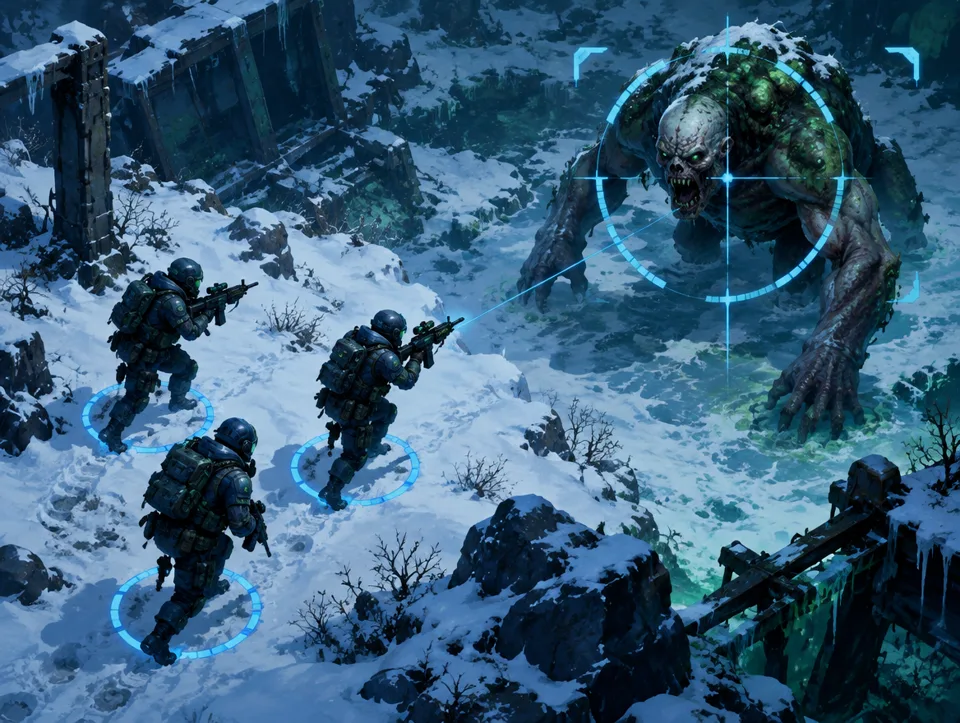
When hunting Invading Zombies, simply spotting the target isn't enough. Team availability, your energy plan, and your position on the map also matter. Establishing a short check routine helps you know what to do between finding a target and waiting for the attack. If you use a bot, this also helps you correctly assess which steps it automates.
Pre-Hunt Team and Energy Check
Before switching to the map, check if the team you want to send is idle. A team currently marching or in combat cannot be sent to a new target immediately. When selecting a team, don't just look at its power; consider whether that team is needed for another planned task right now. If you have resource gathering or Alliance tasks planned, don't assign the same team to two jobs.
Consider energy upfront too. Set yourself a minimum threshold for how long you intend to keep the Invading Zombie cycle running. Attacking every visible target when your energy is limited may delay other tasks you want to do later. Base decisions on the game's current energy indicator; don't stick to a fixed number of attacks. The Energy Management guide details this decision.
Target suitability must also be evaluated on-screen. The visible zombie might not always be a good choice for the team you want to send. Compare your team power and target info as displayed by the game. Avoid rushing to send teams to uncertain targets; this helps prevent unnecessary losses.
Finding Targets on the Map
If no Invading Zombie is visible on the map, it doesn't mean none exist. Scroll the map and scan the surroundings controllably. Deciding which direction to look helps avoid circling the same area repeatedly. If the view is crowded, carefully read the target icon and label; don't accidentally click similar-looking other targets.
When you find a target, first examine the opened card. Verify that the selected target is indeed an Invading Zombie, that the team selection is correct, and which resource the send operation will use. This brief pause reduces the risk of sending the wrong team, especially if you have multiple teams. After attacking, track the team's status; don't try to issue new commands while they are marching or attacking.
When a target disappears, forcing clicks to re-select it is not a good method. The map state may have changed. First, re-read the current screen; if necessary, restart the search from scratch. This approach helps you understand why automation needs to wait, even during manual play.
Small Routine for Repeated Hunting
Follow the same order each round: Is the team idle? Is energy above the threshold? Is the target visible? Is the target card correct? After sending, monitor the team status until the attack ends. When the team becomes available again, check the map. Such an order is clearer than constantly staring at the screen and pressing multiple buttons simultaneously.
If you want to switch to normal zombie hunting when no Invading Zombies are found, make this a separate decision. You can use the Search option and level range in-game for normal zombies. Choose levels based on your own team; there is no single range suitable for everyone. If this conflicts with other goals like Daily Tasks, decide which task to prioritize.
Rewards or progress from hunting depend on the game's current rules and the specific target. Don't expect fixed gains. Compare the rewards shown by the game with potential costs. Especially when energy is low, make the "one more attack" decision based on on-screen information, not habit.
Common Issues
In "Target not found" cases, first check the map view and active screen. You might still be on the HQ screen or have a window open. Return to the correct map area where targets are visible. If a team cannot be sent, check if it is locked, busy, or reserved for another task. Also check the energy status.
If you cannot switch to another target immediately after starting an attack, this may be due to a normal waiting period. Observe the team's attack and march status. See the result of the current operation before issuing new commands. When there is game connection or interface lag, waiting for the screen to update is safer than clicking repeatedly.
Another common error is clicking the wrong target on the map. Especially in moving and crowded views, do not confirm without reading the card header. Checking the target type again before sending takes very little time. This can prevent both wasted resources and unwanted marches.
Automating This
The Last War Bot's ready-made Invading Zombie cycle finds the target on the map, sends your selected team, waits while the team is attacking, and scrolls the map to search if the target is not visible. It skips locked teams. You can select Zombie mode as Invading, Normal, or "Both"; in "Both" mode, it switches to normal zombie hunting for a set duration if no Invading Zombies are found. By setting an energy floor, you can prevent attacks when energy drops below the limit.
The bot works with the on-screen image of the official PC client on Windows 10/11. First, observe the areas it sees using the click-free trial mode and check team settings. Keep the game window in the foreground. Automation may violate game rules; technical protections do not eliminate this risk. Read the Features, Installation, and Security pages to make your decision.
During the first real use, visually verify on-screen that the team is selected and the energy limit is respected.
When the map view changes, re-check that the bot selects the correct target; if you see an issue, use the EMERGENCY STOP shortcut via Pause/Break (or F12).